My 10 bread-and-butter writing tools for standout copy & content
Great writing tools can be a godsend. When you’re all out of words or stuck on a tricky sentence, knowing you don’t have to rely on brain power alone can make all the difference, especially when a big deadline’s looming.
From thesaurus lists that spark fresh ideas to quick formatting tricks that save you flapping over H2s, I’ve put together my favourite tried-and-tested writing aids to help you create standout copy and content time and time again.

Save these tools for later
Ever stumble across something useful, only to forget all about it days later? If your brain’s anything like mine, mentally storing stuff away and assuming you’ll remember to come back to it is usually wishful thinking. So, to make sure you can access these resources just when you need them, save this blog link as a shortcut or pick a selection of your favourite tools to bookmark.
I keep my top 10 tools on my internet browser home screen. This makes it really easy to pull up a new tab and find exactly what I’m looking for. If you’re using Chrome, you can do this in seconds. Simply open up Chrome or create a new tab and click ‘add shortcut’ under the Google search bar. Once you’re done, you’ll have all your chosen tools at your disposal whenever you browse the web.
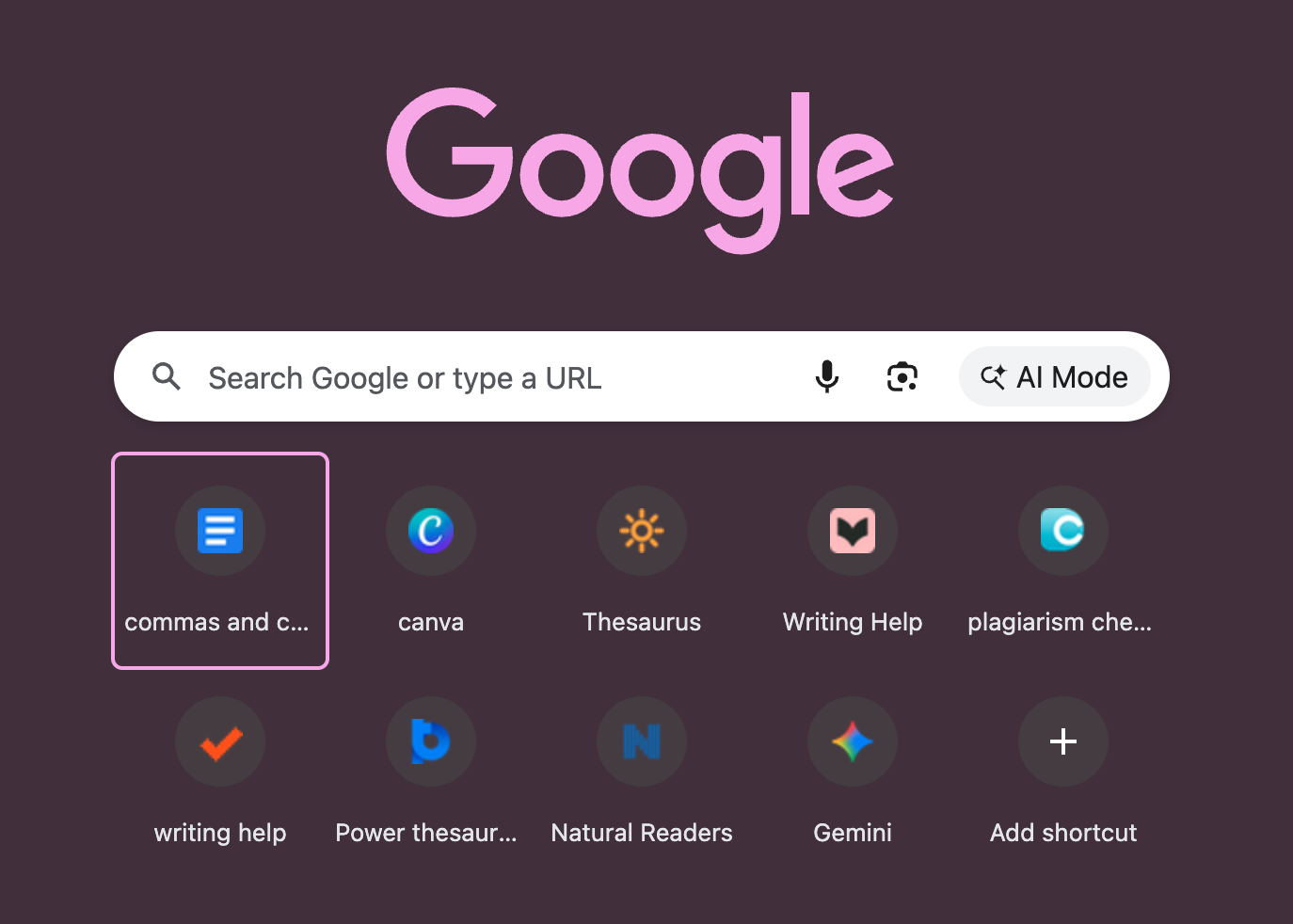
Chrome Shortcuts
Must-know tools for copy and content writing
Brain fog? Blurred vision? Full-blown writer’s block? These can become a daily reality for anyone writing copy and content on the regular.
Here are 10 helpful writing tools that see me through to the finish line no matter how foggy I’m feeling:
For alt words or phrases: OneLook Thesaurus & Power Thesaurus
Whether you’re sharing wisdom in the blogosphere or rustling up Facebook ad copy, having a great thesaurus at your disposal is a must. I personally prefer thesauruses packed with idioms and multi-word options because I often get stuck needing a like-for-like phrase. That’s why OneLook and Power Thesaurus are my go-to picks. Both sites offer a wide variety of word options, with both formal and informal suggestions to suit different writing styles. I usually have them open side by side, so I can compare suggestions and narrow down just what I need.
If you’re on the hunt for words, you might also want to try ChatGPT, but it can start to feel a bit ‘samey’ since it naturally gravitates towards the most common synonyms and phrasing. I tend to find that I need to sift through lots of suggestions or prompt multiple times to find words that feel fresh.
When I do use ChatGPT and other AI chatbots, I like to either ask for a list of synonyms or enter a full sentence with blanks and ask it to fill in the gaps. For example, if I need some adjective ideas for a sentence, I might put something like:
‘With its warm tones and (adj) patterns, solid walnut is a (adj) pick.’
I find this method helps me to maintain my flow when writing. I simply leave gaps during the drafting process, then come back and tweak them later on.
2. For writing advice and ideas: ProWritingAid
ProWritingAid is a digital writing tool for professional writers and bloggers which – I confess – I’ve never actually used (I know, forgive me). What I have used though is the ProWritingAid free writing advice blog, and I have to say, it’s a real gem. Sometimes I’m after a word starting with a specific letter or I’m hunting for a lesser-known punctuation rule, and time and time again it pop ups first in the search results with exactly what I’m looking for.
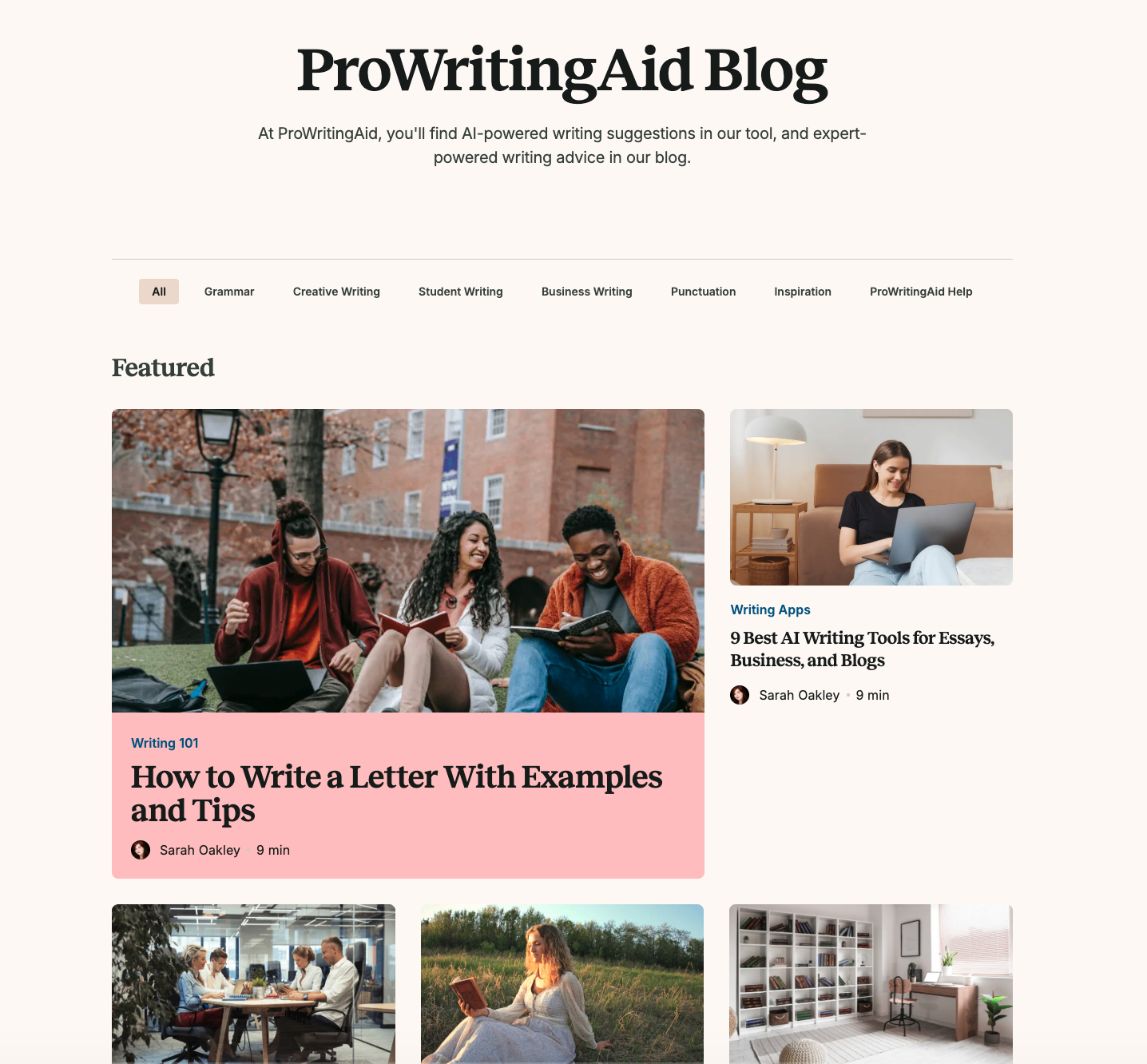
ProWritingAid Blog
Whether you want to get to grips with an unfamiliar abbreviation or learn how to use commas correctly, be sure to check it out. If you have a very specific writing query and you’re desperate to find an answer, chances are, they’ll have a blog for it!
3. For quick formatting and research: Copilot/Gemini
While I occasionally use AI in place of a thesaurus, I mainly use it for formatting or asking questions about topics. Writing monthly blog content means I regularly need to capitalise headers in line with certain style guides or switch spelling from British to American (or vice versa). Using AI is ideal for this. I might ask something along the lines of:
‘Please capitalise the following headers in Title Case and ensure all spelling is switched from British to American English.’
OR
‘Break up this paragraph into short, bulleted points to make it easier to scan online.’
I find most chatbots generally do a pretty good job at converting my work into the desired format, although I always glance over the text myself to make sure nothing’s been missed.
When I’m purely in ‘research mode’ and need to get to grips with a new topic, I like to stick to Gemini because it uses the most accurate, real-time info from Google. In the past, I’ve turned to ChatGPT and Copilot for research and found that they’ve invented bogus statistics or suggested outdated sources that were no longer relevant. This is something you have to be particularly wary of when integrating LLMs into your workflow.
Once I’ve gathered info in Gemini, I then cross-reference it with other sources to make sure everything is 100% accurate before I use it in my work. If I’m not fully confident that something is factually correct, I won’t use it.
4. For basic spelling & grammar checks: Google Docs spelling & grammar tool
I really didn’t want this section to turn into a rant about Grammarly but unfortunately, that’s kind of what it’s become. The truth is, I’ve found myself gravitating towards the Google Docs in-built spelling and grammar checker more and more in the last few years. While it’s far from flawless, it gives me considerably fewer incorrect suggestions than Grammarly, meaning I don’t have to waste my time rejecting suggestions simply because it hasn’t understood my tone or has confused a colloquialism with a grammatical slip-up.
Although AI has come a long way in the past decade, I’m yet to find a fancy AI spelling and grammar tool that edits as well as a human. So, if you have a relatively good grasp of British spelling and grammar and find aggressive popups distracting while you type, you’re probably best off ditching Grammarly and sticking to Google Docs in-built spell check tool.
Here are some issues to look out for when using Grammarly for editing:
Collective Nouns as Plural: Grammarly will try to change ‘The team are playing’ to ‘The team is playing’. Using ‘our’ is perfectly acceptable in contemporary copy and content writing, and often sounds less clunky and more personable.
The ‘-t’ Past Tense: In British English, it is correct to add a ‘t’ to the end of certain verbs, yet Grammarly can sometimes flag words like ‘learnt’, ‘spelt’ and ‘dreamt’ as misspellings, preferring the ‘-ed’ versions.
Punctuation Outside for Idioms & Scare Quotes: If you’re using an idiom or scare quote and require a full stop or comma directly after, it should sit outside of your punctuation marks to complete the sentence. For example: It’s definitely got that ‘wow factor’. Grammarly often shifts the punctuation to inside the quote marks.
Preposition Shifts: Grammarly will swap terms like ‘at the weekend’ for ‘on the weekend' or ‘cater for’ for ‘cater to’.
Extra commas: Grammarly is notorious for adding commas here, there and everywhere. It will suggest commas for joining short clauses, around every single ‘and’ or ‘but’, and for any kind of introductory word or phrase. While pauses can help to add clarity, Grammarly’s tendency to add commas to every line can be a bit ‘overkill’.
This list could probably be multiple pages long, so if Grammarly flags up an error and your gut’s telling you something’s not right, seek a second opinion. A quick Google search can help you to understand if the suggestion’s a non-negotiable rule or purely a matter of stylistic preference.
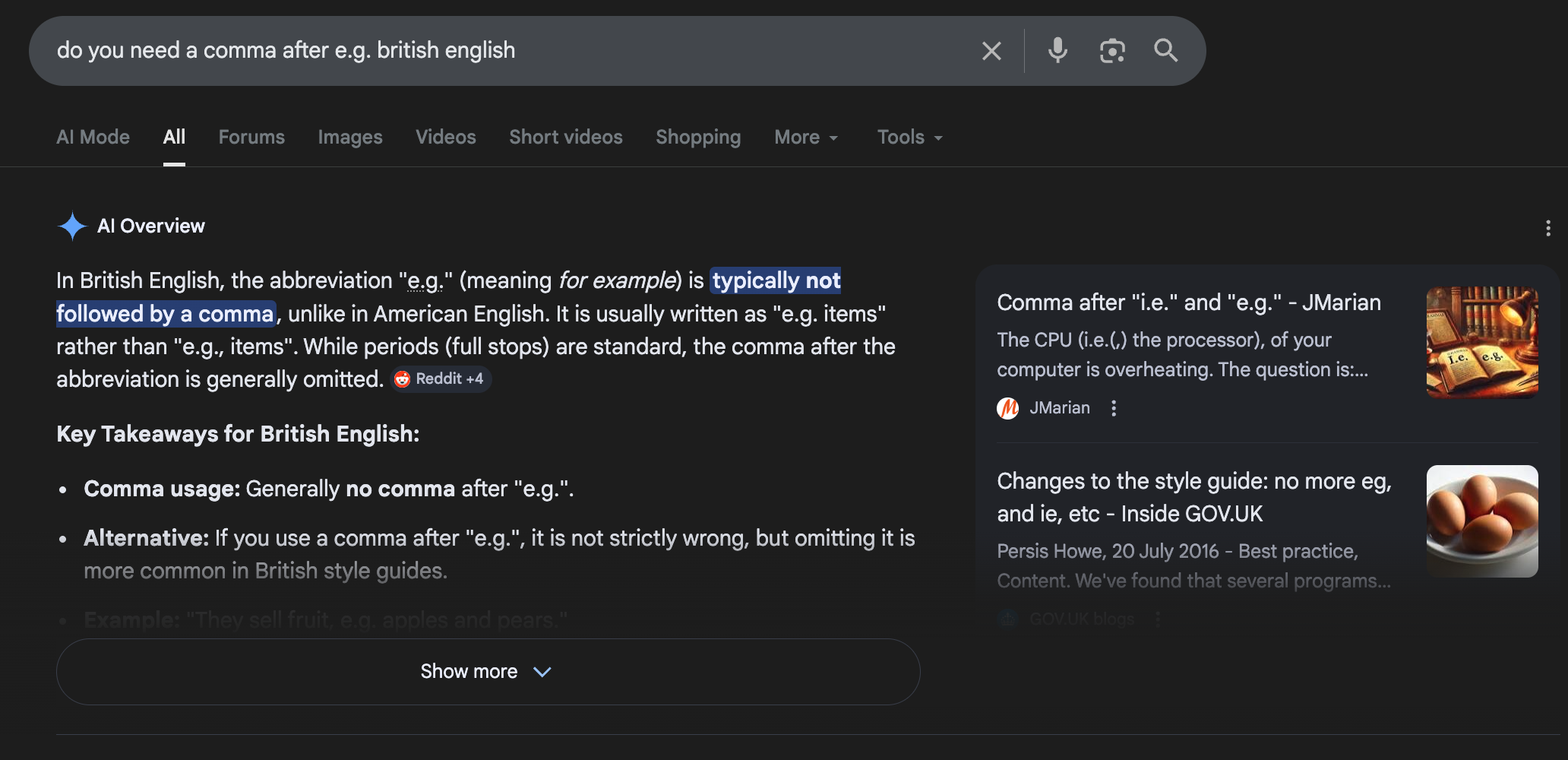
Google ‘grammar rule’ search
5. For trickier grammar: University of Oxford style guide (or equivalent)
If you’re grappling with a grammar rule and don’t have a TOV guide to follow, I highly recommend the University of Oxford style guide. Although some of the suggestions lean towards more formal, academic writing, there are loads of helpful tips and examples that you can use if you’re really unsure about a sentence or need to settle a grammar rule once and for all. The guide is packed with handy suggestions for formatting, plus top tips to help with list writing, dashes, apostrophes, date ranges and so much more. Available as a downloadable document, it’s well worth saving to your desktop.
6. For tone consistency: DIY client TOV spreadsheet
Okay, so this isn’t a traditional writing tool as such, but whenever I start working with a new client, I always make a note of their tone of voice in my DIY client TOV spreadsheet. I’ve organised my spreadsheet so that I can quickly sift through different tabs and access a client’s TOV whenever I need it. I tend to include a summary cell that gives an overview of their brand style, a cell for their target audience, a snippet of example text and a cell full of words that do and don’t sound like them. This helps me to quickly refresh my brain when jumping between different styles of writing multiple times a day.
You can create a very simple TOV spreadsheet by copying the example structure below. I’ve included the following headings:
Tone Summary
Target Audience
Example Text
Words That Fit
Words to Avoid
Notes
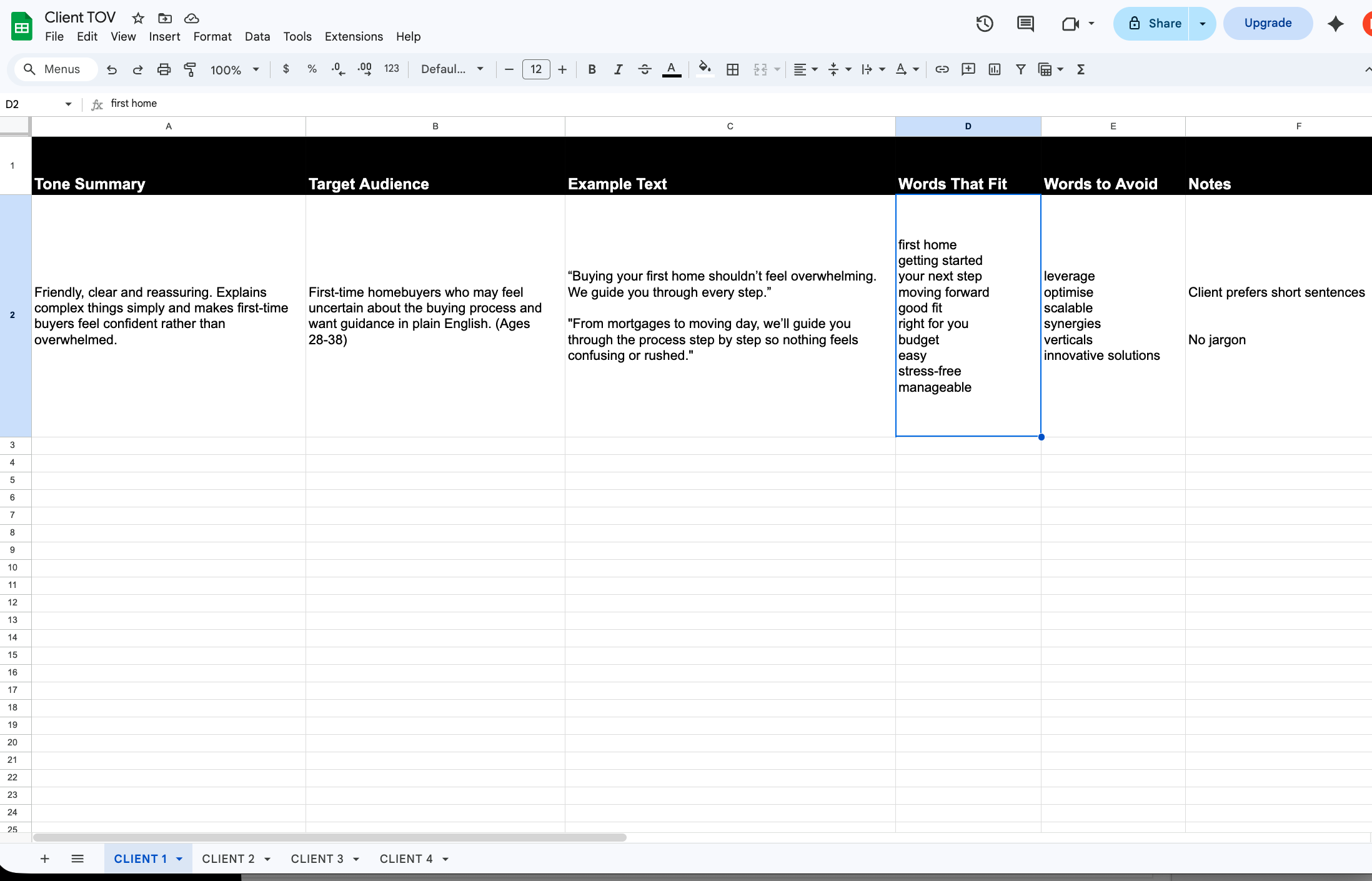
Example Template for Client TOV Spreadsheet
If you’re writing for a client and they’ve supplied you with a TOV guide, you might want to copy across key information into your spreadsheet. Having everything in one place is a lot simpler than digging through different brand books and style manuals. Feel free to jazz yours up with fun fonts or colours for a personal touch.
7. For checking flow & saving tired eyes: Natural Readers
When my brain’s feeling foggy or I feel lost in the middle of a long page of writing, I often turn to a free text-to-speech tool like Natural Readers. Although there are limits on the amount of text you can input, there’s something so helpful about taking a break from the keyboard and hearing your words back as audio.
Granted, the free voices aren’t the most natural sounding, but I find listening to my copy (even if it’s a little ‘robotified’) allows me to spot any obvious issues with rhythm or recognise when I’m overthinking. It’s also great for when you reach the end stage of a piece of writing and want to review it without having to read it for the millionth time. It just gives you that extra bit of clarity that’s harder to find when you’re caught up in your own words.
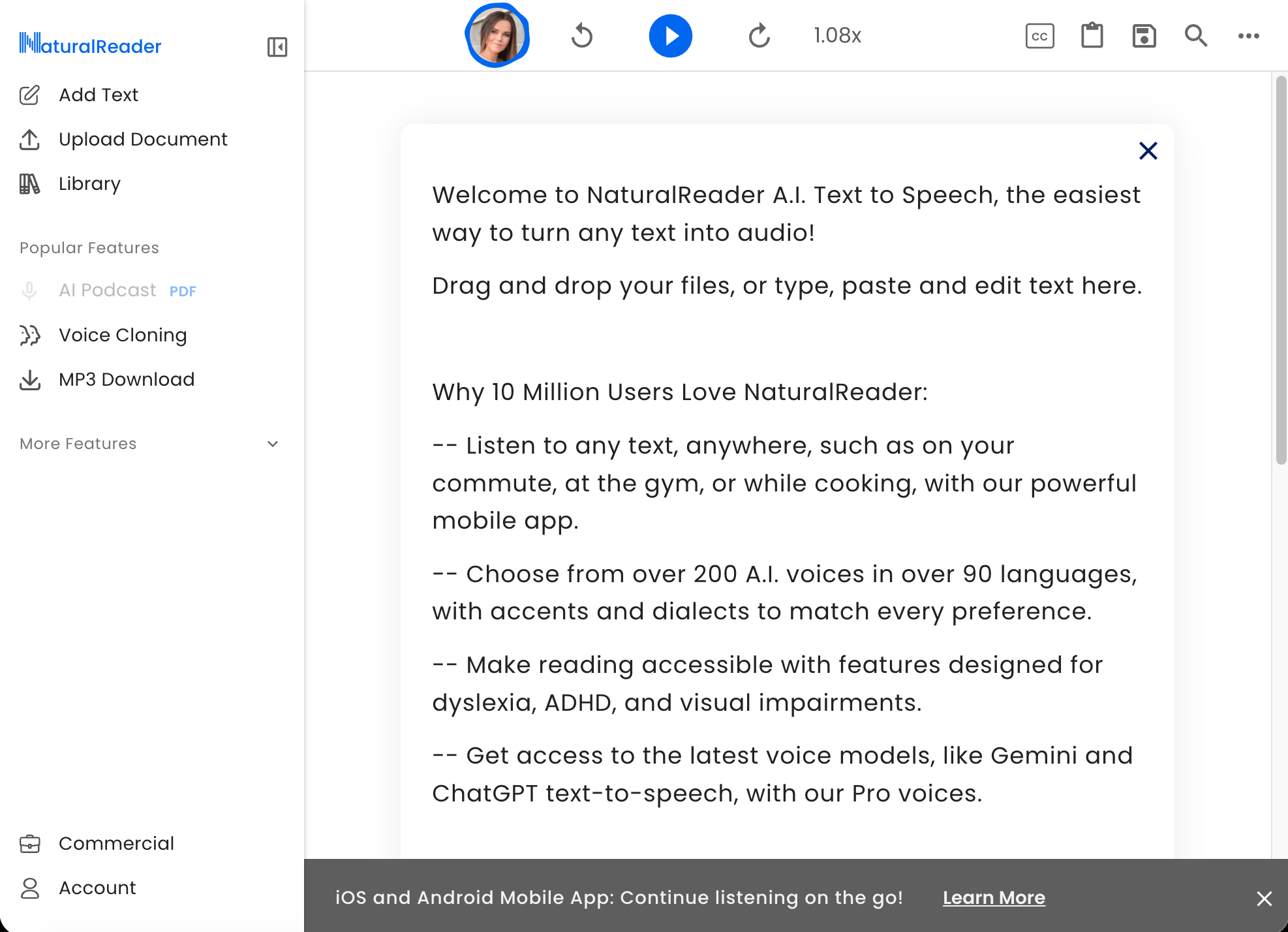
Natural Readers Main Page View
8. For SEO keywords: AHrefs
Although I don’t use keyword tools as often as I used to, when I’m tasked with keyword research, AHrefs is always my SEO tool of choice. I don’t know if I’ve become a bit biased because I’ve used it for so long, but I generally tend to find that when compared with sites like SEMrush and SEranking, results are noticeably more accurate.
To conduct a search, I select my search country of choice, enter my topic and then order by keywords with the highest search volume and lowest competition. I also enjoy making use of the ‘questions’ tool for long tail keywords, which can provide great inspo for content titles.
Not got paid access to AHrefs? You can use AHrefs free keyword generator to get a list of 100 keyword ideas and 50 question-based suggestions per search, along with approximate search volume for all results and keyword difficulty (KD) for the top 10.
9. For adding character: Thought Catalog’s Cool Short Words
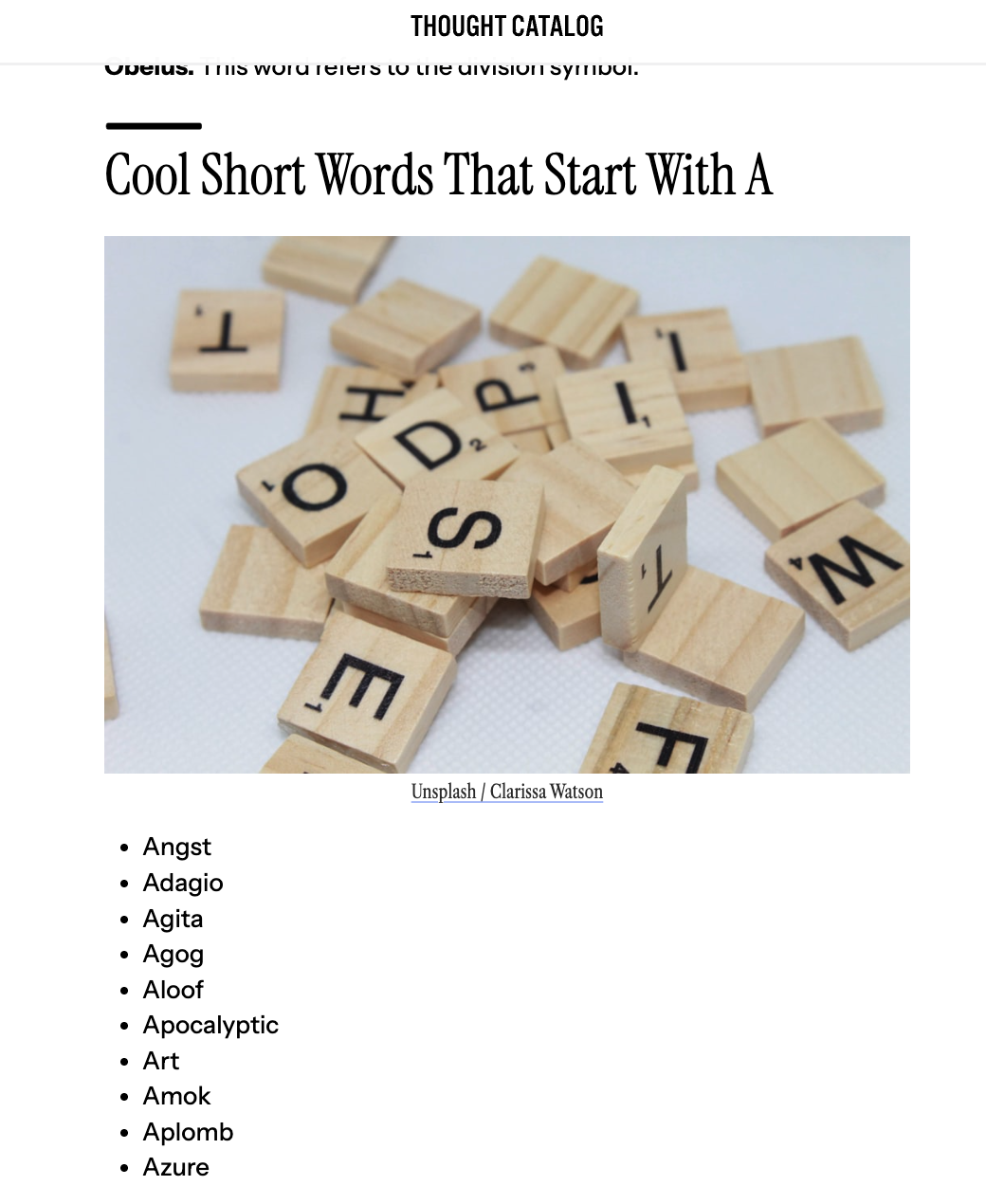
Thought Catalog’s cool short words blog
I’ve thrown this one in for a bit of fun, but I couldn’t not mention it. What I love about Thought Catalog’s cool short words list is that it includes so many words that just sound downright lovely. You really get a sense that writer January Nelson has taken the time to source vocab that feels like a treat to read aloud. They’re the kinds of words that give writing that real punchy, zesty feel, not generic everyday words that you could easily grab from ChatGPT. From ‘Gerrymandering’ to ‘Ironclad’, you’ll find great‑sounding nouns nouns, gutsy adjectives and so much more. If you like words that are a bit weird and wonderful, this list’s for you.
10. For blog themes: AnswerThePublic
You could be forgiven for thinking that AnswerThePublic is just another SEO platform, but it’s actually a great little tool for monitoring current trends and popular ideas. Displaying real-time Google Autocomplete data as visual keyword maps, it gets you inside the minds of searchers and shows you exactly what people are typing right now. I personally love using it because it helps me to analyse search behaviours across different platforms. This then gives me info I can use to guide content plans or create meaningful article headers.
There’s a paid version of the tool that gives you unlimited access to searches and data updates for around £13 per month, so if you regularly create content and want to become more in tune with your audience’s questions and interests, this could be well worth the investment.
AND That’s a wrap
That’s it. That’s my list of go-to writing tools. If you decide to put them to the test or have suggestions that I haven’t included here, I’d love to hear from you. Head to my contact page to get the conversation going, and don’t forget to explore my copywriting services if you need writing support on a regular basis.